
How do I trace my property?
How to Map Your Property
Mapping your property accurately ensures you receive the most precise quotes for your services. Follow these steps to define your property boundaries and service areas.
Getting Started
If you have already signed up and need to add an additional property, navigate to Account > Properties > Add.
Mapping Steps
Enter Address: Enter the full street address for the property you wish to map.
Position the Map: An aerial view of the property will appear. Use gesture controls (pinch to zoom, drag to move) to center the property. Ensure the entire property boundary is visible on your screen.
Draw the Perimeter: Tap Draw. Using your finger, trace the entire outer perimeter of your property.
Tip: Start at one corner and follow the property lines closely. If you need to restart, tap Clear.
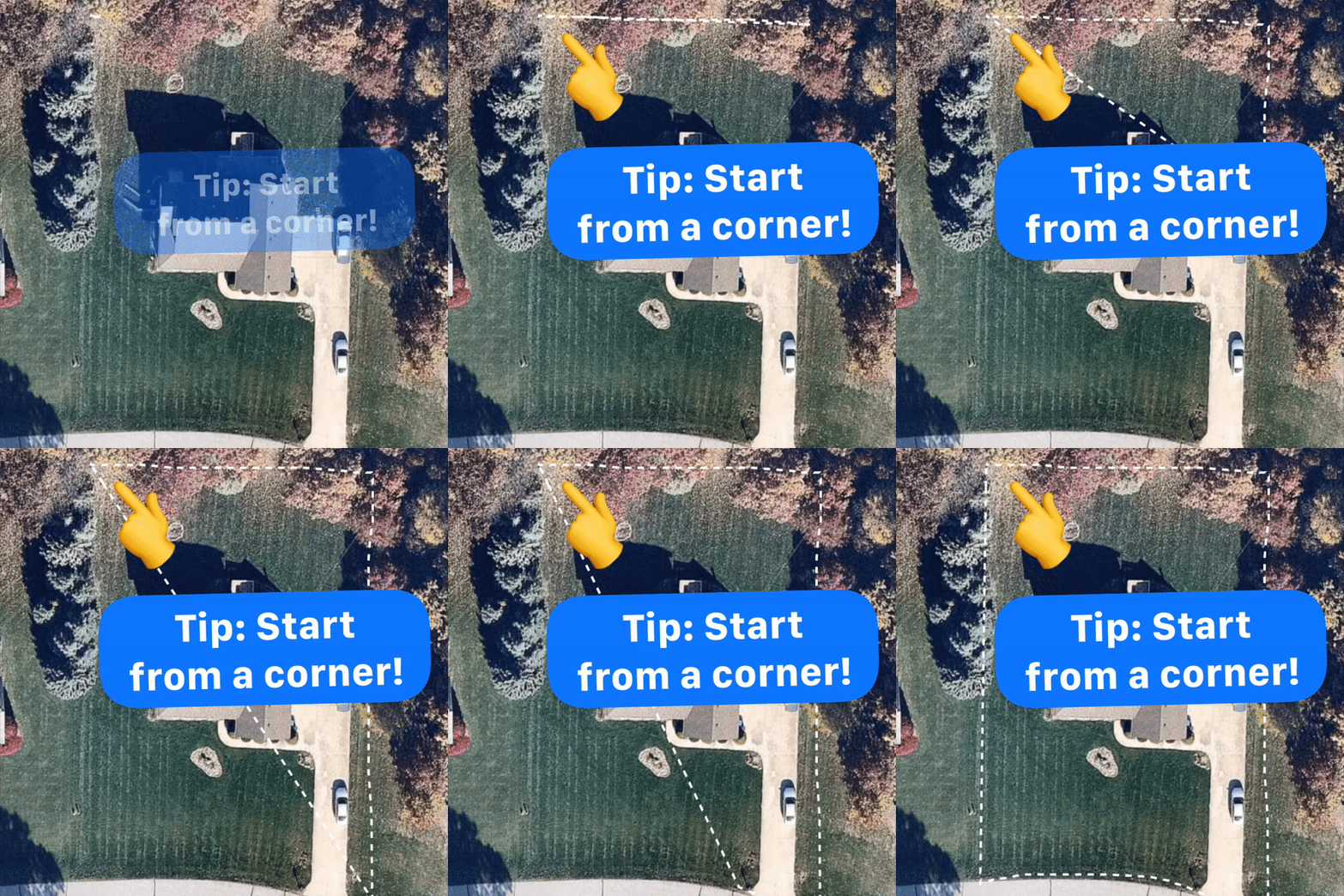
Apply Perimeter: Once the perimeter is traced, tap Apply.
Reviewing and Editing Service Areas
Our system uses machine learning to automatically identify your Lawn, Driveway, and Sidewalks. Please review these areas for accuracy.
Review the Lawn: The app will display a highlighted area (polygon) representing your lawn.
If it looks correct: Tap Approve.
If it needs adjustments: Tap Edit.
Editing Tools: Use the following methods to refine any area:
Move a Point: Tap a point to select it, then drag it to the correct location.
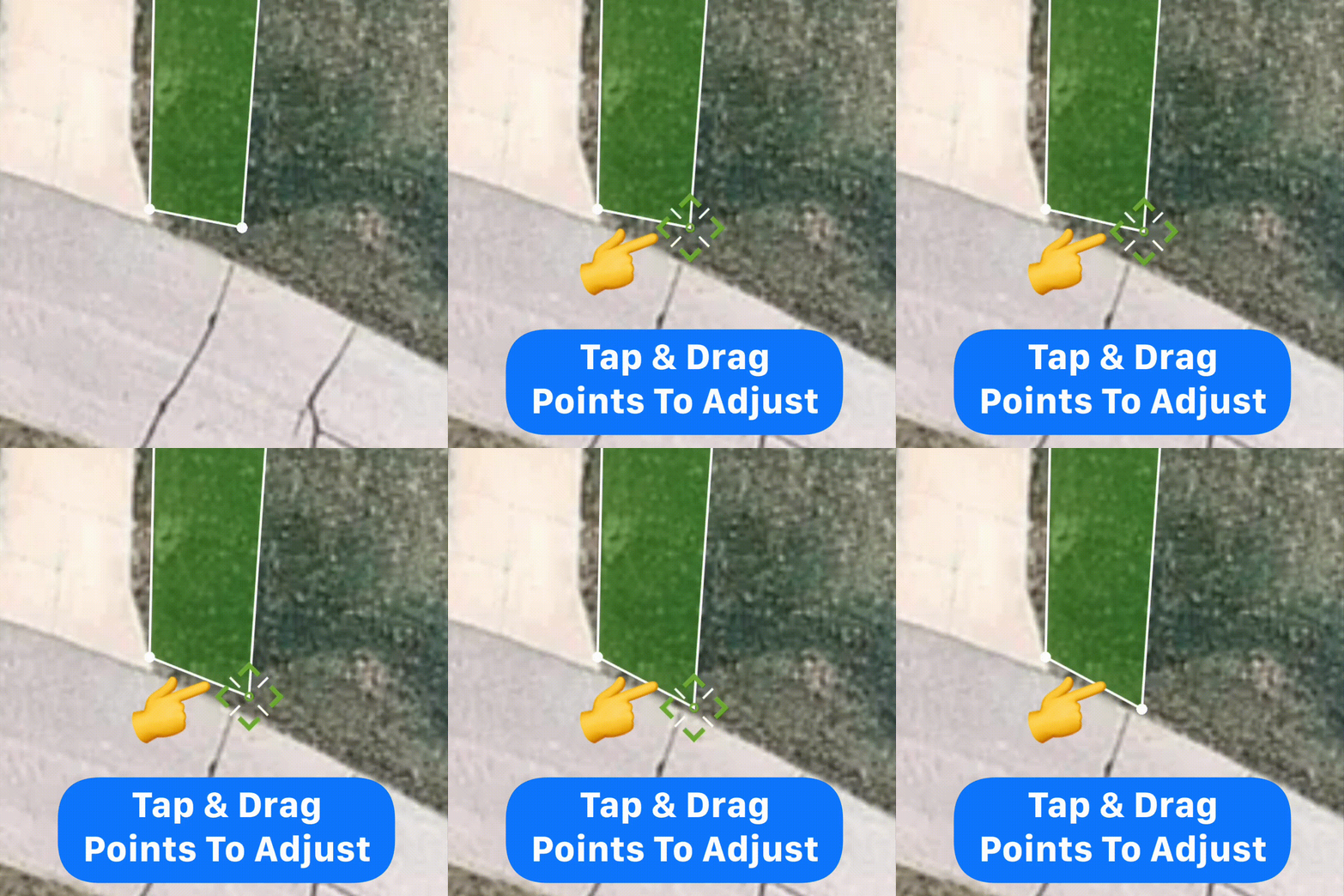
Remove a Point: Select a specific point and tap the Remove button.
Delete Area: Tap the center of a polygon to select the entire shape, then tap Clear.
Manual Draw: To add a missing area, tap Draw and trace the area manually.
Finalize Areas: Once the lawn is set, repeat this process to approve or edit your Driveway and Sidewalk areas.
[!IMPORTANT] Accuracy matters! Correct mapping ensures your Pro knows exactly where to service, preventing pricing disputes or missed areas.
Need Help?
If you are having trouble mapping your property or would prefer an agent to assist you, please contact LawnGuru Customer Support through the in-app chat or help center.